

Change a decision before you approve it
In a decision you can pick a different number than the one suggested, or ask for another version in your own words. The button says exactly what goes out.
On this page
Change a number
In the decision, tap the pencil on the number
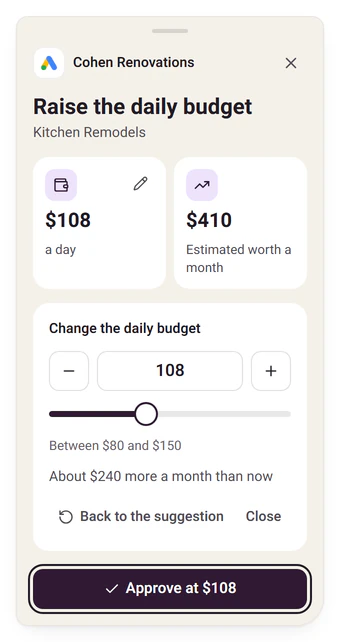
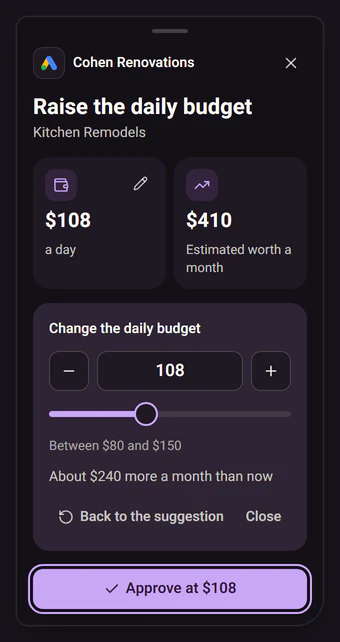
The box opens with its name, for example “Change the daily budget”.Pick with the slider, the − and + buttons, or type it
Under the slider is the allowed range, for example “Between $80 and $150”. Below it, what it means for the month, for example “About $240 more a month than now”.Approve with the new number
The main button follows it, for example “Approve at $108”, or “Approve with the change” when it isn't money. “Back to the suggestion” restores the suggested number.
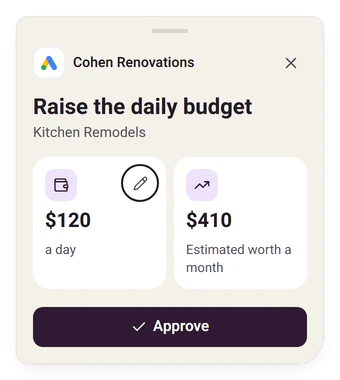
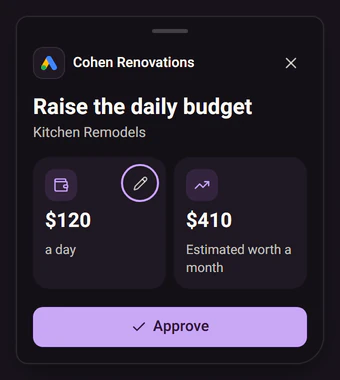
Taseli checks the number again right before it goes out. If it breaks a rule you set, falls outside the range or the platform won't take it, you see why and nothing changes, for example “That goes past a rule the owner set. Nothing changed”.
On a new campaign you can also change the ages (“From age”, “To age”) and the area: “Change area”, then “Update”. The new version waits for you in its place.
Ask for another version
When a decision has no number to change, the pencil at the top asks “What should change?”. Write it in your own words and tap “Update the decision”:
- A new version comes back in the same popup, checked again.
- A lasting rule, such as not on weekends, is remembered for next time, and the popup says so.
- If what you wrote means you don't want it, the decision closes. Nothing changes in the account.
Approving several together? In “Review and approve (N)” you can untick any decision you want to leave out. See how to work through To approve. The figures above are examples.