

How to approve settings changes on WhatsApp, and undo them
Ask Taseli on WhatsApp for several settings changes and it sends one plan with buttons: Approve, Not now or Details. After approving you can undo.
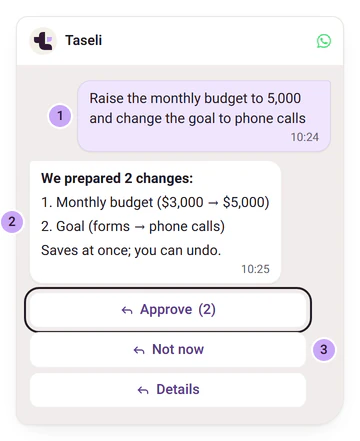
You can ask Taseli on WhatsApp for several changes at once, like updating your monthly budget and your goal. It prepares one plan, and you approve with a tap.
Ask in your own words
For example “raise the monthly budget to 5,000 and change the goal to phone calls”.Get a short plan
The message shows the first changes, before and after. “Details” shows all of them and why.Tap
“Approve” saves the settings at once. The number on the button is how many changes are saved. “Not now” changes nothing.
Undo
After you approve, an “Undo” button appears. It puts each setting back as it was, and works for 24 hours after you approved. After that, change it in Settings.
What doesn't go through the plan
- Pausing a campaign, daily budgets and blocking searches: these change a live ad account, so they come in the next message, with their own buttons. One change comes as a decision. Several come together with “Approve all”, and then you confirm once more.
- A new campaign and new ads: you get a link to the app, so you can read the texts before approving.
- Your own notifications: change them directly, so one tap can't alter them by accident.
Troubleshooting
It says the plan isn't waiting anymore. It was approved, declined or two days passed. Ask for it again.
Some changes weren't saved. “Details” says why, for example the account is read only or your role doesn't allow it.
No buttons. WhatsApp lets us message first only up to 24 hours after your last message. Write “hi” and the plan arrives.